Gameplay Basics:
Hotkeys
There is a bar at the top that provides functions (with equivalent shortcut keys) described below:
- Map
- Pressing
ALT + Rwill open a mini-map to help you navigate. Pressing it twice will make it slightly larger. - Character
- Pressing
ALT + Pwill open your paperdoll. - Inventory
- Pressing
ALT + Iwill open your backpack. - Journal
- Pressing
ALT + Jwill open the journal. - Chat
- This function does not work. Use the chat system in the paperdoll's HELP menu instead.
- Help
- This is the same as the HELP button on the paperdoll.
- World Map
- This will open the more useful customizable navigation map.
You can learn about other commands in the HELP section of the paperdoll. Many of these commands are executed from the bottom bar where you can enter the command and press ENTER. Most of these commands will be prefixed with a "[". So if you wanted to chat, for example, you would type "[chat" and press ENTER.
Movement
To move your character around, you can use the arrow keys on your keyboard. The most common method, however, is to use the mouse. Move the cursor toward the direction you want to move. Then press the right mouse button. Your character will move in that direction, but only if there are no obstacles in the way like walls/trees. If you move the cursor further away from the character, they will run instead of walk. OPTIONS can be set to always run.
Your character can only move at a certain speed. You can, however, find creatures to ride and hiking boots. This will increase your speed even faster than base running. If you enable pathfinding, in your client settings, you can double right click on a location and your character will try to walk there on their own.
Inventory
When you begin your adventure, you will already be dressed in fantasy appropriate garb. The window you see here is referred to as the paperdoll. This usually opens automatically when you enter the game. You can close it like other windows. To open this window again, you can either double click your character, or use the ALT + P keys.
Backpack
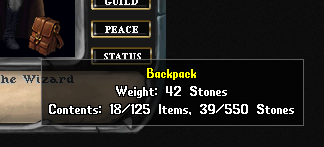
The lower right of the paperdoll has a backpack. This contains the items you are carrying.
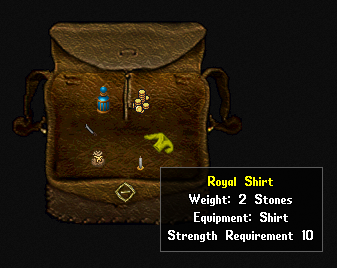
If you hover the cursor over a container, you can usually see how much weight it is holding, along with the number of items in it. Double click the backpack to open it. Here I have some gold, water, candle, bag, knife, and shirt. When I hover my curser over the shirt, I can see that it has an equipment slot set for "shirt".
Equipment
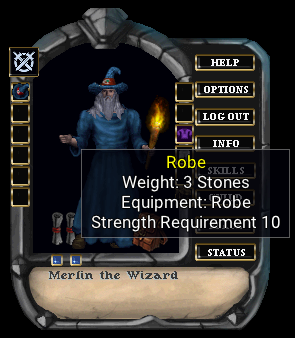
Items with equipment notes can be dragged and dropped onto your paperdoll to equip the item. Each equipment slot category can only have one item at a time. This means that you cannot have two shirts on at the same time. To remove items from your paperdoll, you can drag and drop them off the paperdoll. You can set items in containers, or on the ground.
Like the items in containers, or on the ground, you can also hover your cursor on equipped items. This will show some things about the item. Some items can be single clicked to open context menus. One may be "Examine" to select which will show more information.
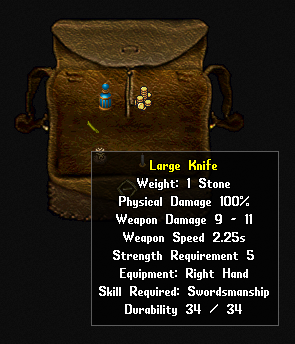
Items such as clothing, armor, and weapons usually have the most information to show. Here is an example of the large knife in the backpack. You can see the damage it does, the general speed of the weapon, and the strength required to wield it.
Maximum Capacity

Your strength determines how much you can carry. You can see your carrying capacity in the character information window. Your backpack also determines how much you can carry. Your backpack can carry up to 125 items and up to 550 stones. Whichever is reached first. If you are carrying more weight than your strength allows you to carry, then you will be unable to move unless you lighten your burden.
Stackable items
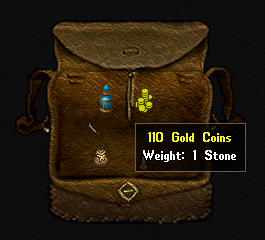
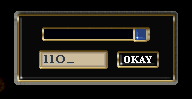
Some items are stackable. This means that they can be stacked onto each other as a single item with a quantity. The weight increases as you stack items in this fashion. Here you can see I have some gold coins in my backpack. When I hover over the stack, I can see that there are 110 coins. If I select such an item and try to drag the stack of items, I will get a window that will allow me to split the stack into smaller amounts. You can either type a value in the box or use the slider to set the amount. Press the OKAY button to split the stack and drag it elsewhere.
Be careful where you put your items!
If you drop items on the ground, they will be gone after a period of time elapses (decay). If you put items in a container that is not yours, it will likely be gone later as well. There are places to safely stow items that will be discussed later.
Usable Items
Some items can be used. To use an item, double click it and see what happens. If an item cannot be used, nothing will happen. Here is a small list of items that can be used in this fashion:
| - | Food | - | Drink |
| - | Potions | - | Bandages |
| - | Tools | - | Books |
| - | Scrolls | - | Wands |
| - | Containers | - | Doors |
Some of these items are allowed to be used multiple times. Others have a single use or a set number of uses. Potions and scrolls, for example, have a single use. If you drink a potion from a stacked quantity of 35, the stack will reduce to a quantity of 34. Items such as wands and tools have a limited number of uses. Items with a set number of uses will usually indicate the amount when you hover over them.
Some things can be given to NPCs by just dragging and dropping items onto them. This is usually done when you must give them gold for something specific, or a specific item they are expecting.
Paperdoll
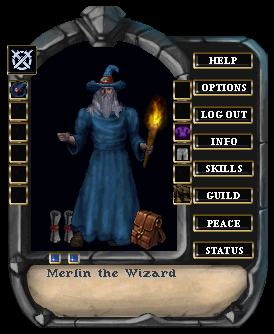
You can do more with the paperdoll other than dress yourself and look over your equipment. We will cover the functions you can perform here.
Profile and Party Buttons
There are two blue buttons on the lower left. If you double click the first one, you will open a scroll that shows you how old your account is. You can also write in this scroll by selecting the blank line at the top. This is your player profile. The other opens a window for party management. Parties can be formed on multiplayer games, where you can invite others to be in the same party. This gives benefits such as messaging, group looting, and friendly effects of spells and such.
Help Button
The HELP button will open a detailed window of options and information. Each section is described briefly below:
- Actions
- A list of ad-hoc actions that Players may wish to perform
- Bars
- A list of bar-type gumps (windows) that Players may find helpful to keep on screen at all times
- Gumps
- A list of (windows) that Players may want to open from time to time
- Magic Toolbars
- An automatically built list of bar-type gumps (windows) that allow casting spells.
- Preferences
- Per-character options that are generally only cosmetic; these options may change how the game looks or sounds to the Player
- Quests
- The legacy and new Quest log
- Settings
- Per-character options that usually change how the game plays. If you wish something worked differently, check here first.
- Stuck in World
- An emergency parachute that delivers you to a known working location. Warning: there are limited uses per day!
- Change log
- A multi-page history of all recorded changes per Release
Client Configuration Button
The OPTIONS button will open settings for the behavior of the game client.
Information Gump Button
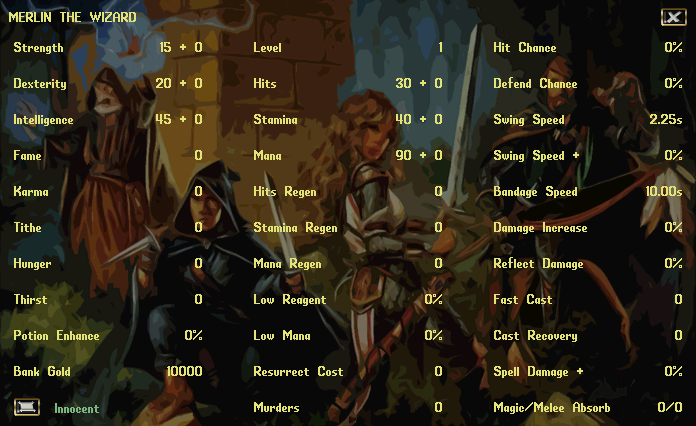
The INFO button (or [status) will open an information window about your character, which has much more detail. You get an in-depth overview of the many statistics that make your character what they are.
These statistics are normally generated by items you find and racial innate bonuses. Magic items that can perhaps increase your damage, or regenerate your hit points, will show those values here.
The lower left has a button you can press to see if you are a wanted criminal. If you are innocent, then you can breathe easy. Otherwise, you can open the wanted poster to see the crimes you may be in trouble for and cities that allow shady individuals.
Skills Button
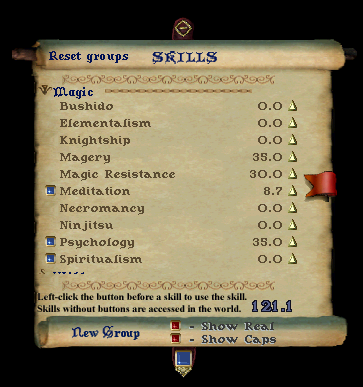
The SKILLS button will open a scroll showing all of the available skills in the game.
Player Guild Button
The GUILD button either lets you start a guild or manage a guild you lead.
Combat Mode Button
The PEACE/WAR button is a toggle where you are either non-combative, or ready for combat. The Tab key is a default toggle for this.
Status Gump Button
The STATUS button will open the character information window as discussed earlier.
Status Icons
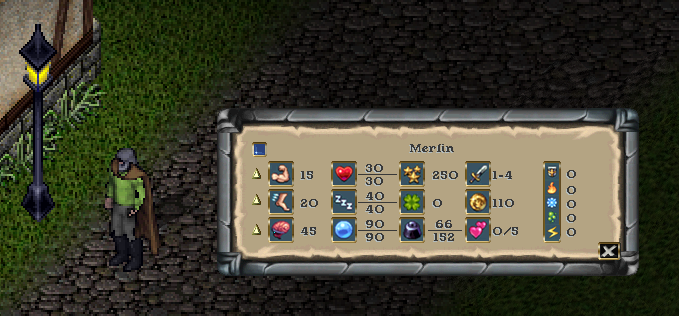
During play, various effects (buffs and debuffs) will be applied to your character: some positive, some negative. You can monitor these effects by using the status icon bar. Select the blue button in the upper left of your character information window to open this icon bar. Like most gumps, close this bar with a right click.
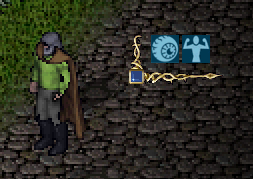
It will be empty of icons if there are no current effects. In this example, I have night sight and strength enhanced by potions. There is a blue button in the corner. Clicking this button will rotate the direction the icons stack.
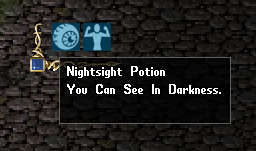
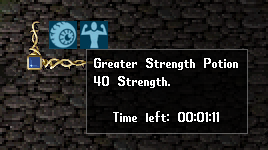
You can hover over the icons to see what the effect is, and perhaps how much longer the effect will last. When the effects are wearing off, they will start flashing.